 Albania
 Argentina
 Australia
 Austria
 Belgium
 Bosnia and Herzegovina
 Brazil
 Bulgaria
 Canada
 Chile
Chile
 Colombia
 Croatia
 Czech Republic
 Denmark
 Estonia
 Finland
 France
 Germany
 Greece
 Hungary
 Ireland
 Italy
Italy
 Latvia
 Lithuania
 Luxembourg
 Mexico
 Moldova
 Montenegro
 Netherlands
 New Zealand
 North Macedonia
 Norway
 Philippines
 Poland
 Portugal
 Romania
 Serbia
 Slovakia
 Slovenia
 South Africa
 Spain
Spain
 Sweden
 Switzerland
 Turkey
 Ukraine
 United Kingdom
 United States of America



Studio Software
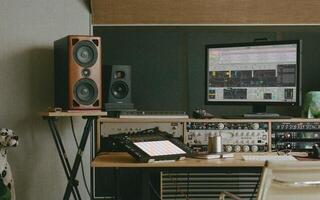
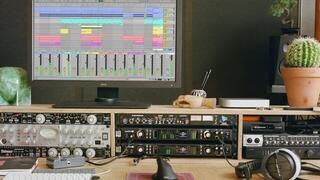
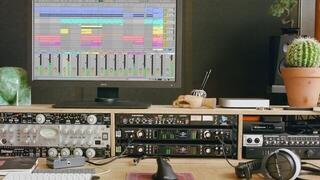
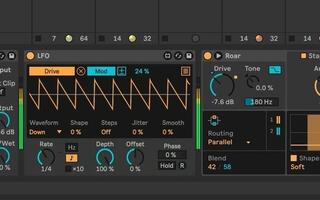
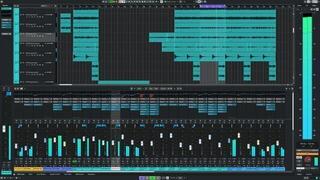
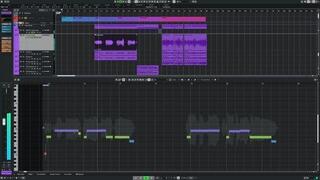
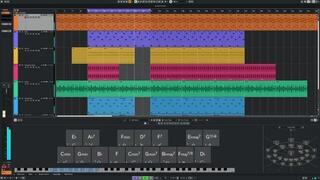
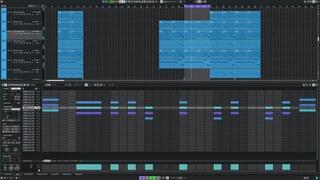
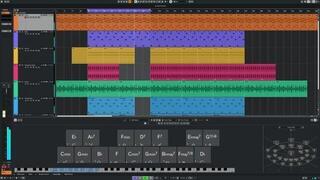
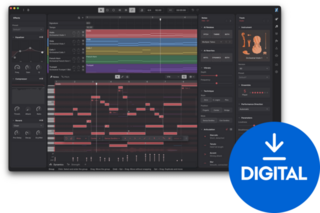
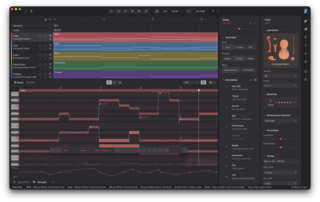
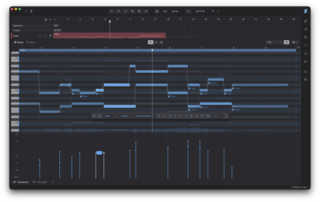
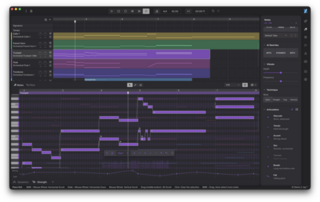
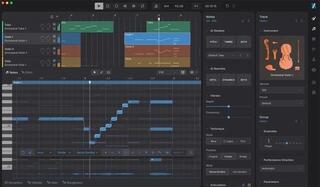
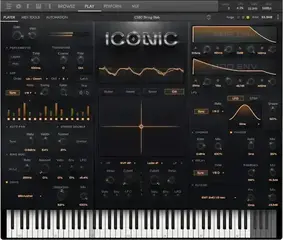
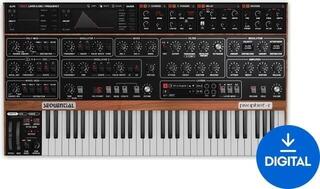
Studio software includes programs for recording, composing, editing, mixing, notation and finalizing music on a computer. This includes DAW recording software, effect plug-ins, virtual instruments, sound libraries, notation applications and specialized tools for picture or education. Before buying, clarify your workflow, operating system, plug-in format and licensing method. The longest feature list will not help if your computer cannot handle the program or it does not fit into your setup.
The foundation is usually recording software
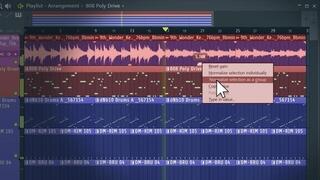
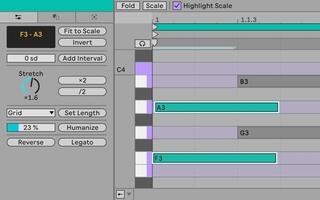
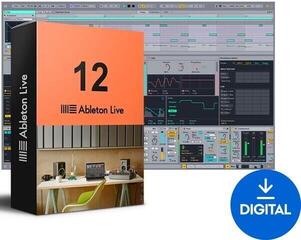
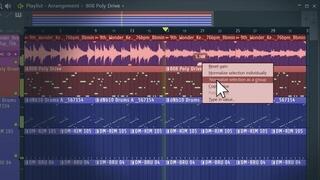
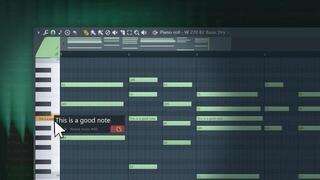
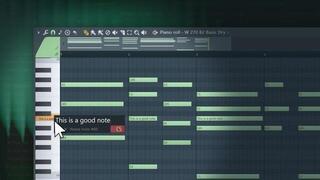
A DAW combines audio and MIDI tracks, editing, automation, mixing and export into a single project. For your first projects, you will appreciate clear controls and useful bundled instruments. In a larger studio, signal routing, cooperation with external hardware and seamless project handoff matter. Before deciding, check how many simultaneous inputs you need and whether the selected edition limits the number of tracks or certain functions.
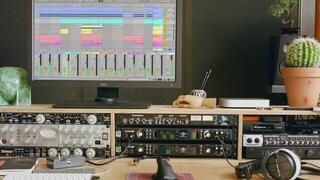
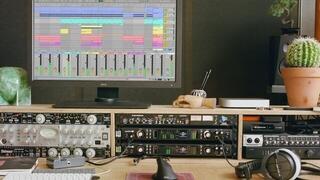
Recorded sound enters the computer through an audio interface. The driver, configured buffer size and computer performance affect latency while playing. Software cannot eliminate all the limitations of unsuitable hardware, so assess the setup as a whole. For a simple mobile workspace, a USB audio interface can be practical, while a more extensive setup requires more inputs and outputs.
Comparison of main categories
| Type | Purpose | What to check |
|---|---|---|
| DAW recording software | Recording, editing and mixing multiple tracks | Edition, operating system and supported plug-ins |
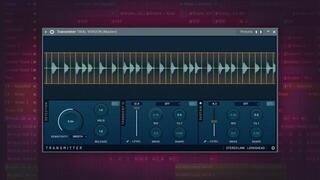
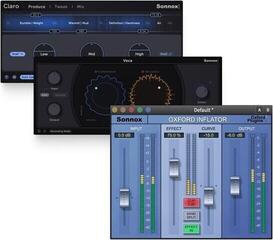
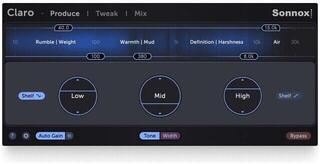
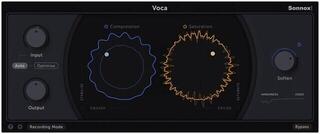
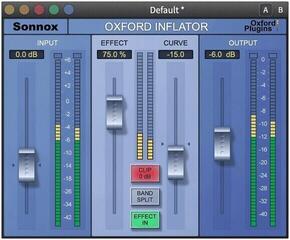
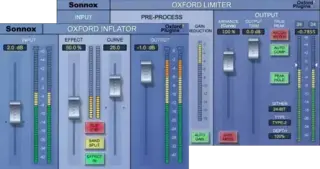
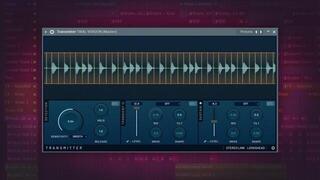
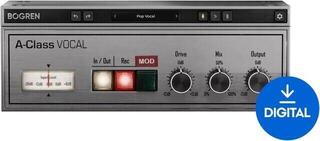
| Effect plug-ins | Equalization, dynamics, space and creative processing | Format, authorization and latency |
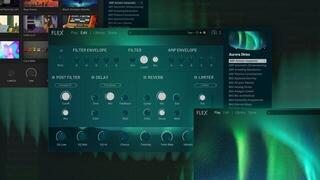
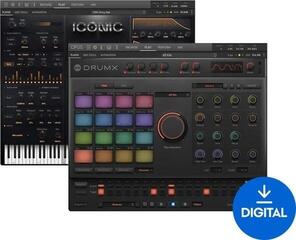
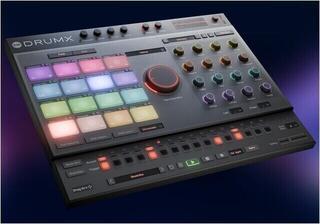
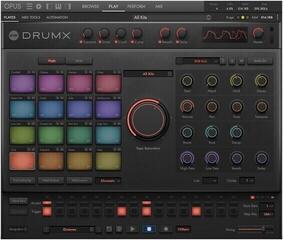
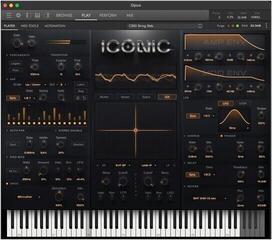
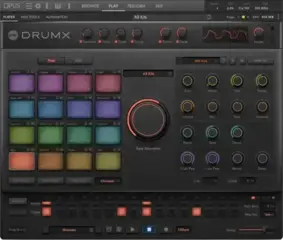
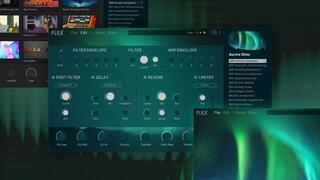
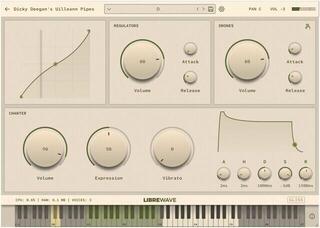
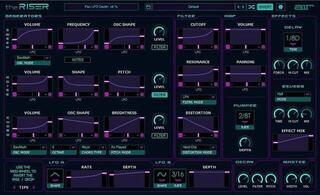
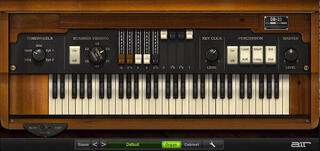
| Virtual instruments | Synthesizers and sampled instruments controlled via MIDI | Processor, memory and storage requirements |
| Samples and sound libraries | Ready-made sounds, loops and recorded articulations | Size, library manager and licensing use |
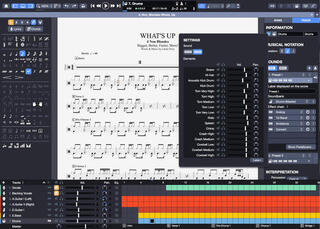
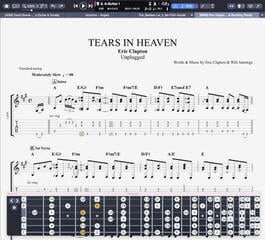
| Notation software | Writing notes, scores and arrangements | Engraving scope, playback and format export |
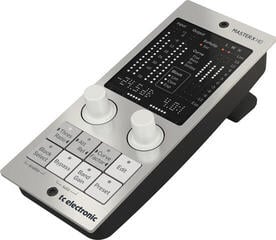
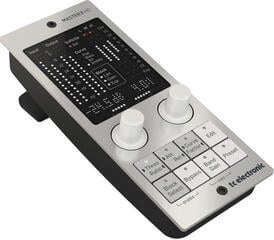
| Mastering tools | Checking and preparing the final file | Metering, compatibility and target format |
Plug-ins, formats and compatibility
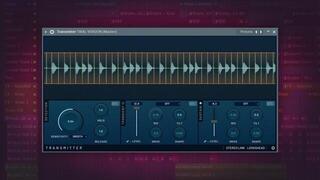
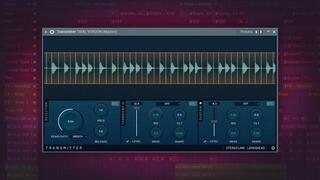
An effect or virtual instrument must match the format supported by your DAW and operating system. VST, AU and AAX labels indicate the plug-in interface, not its sound quality. Also check the system architecture and list of supported versions; an old plug-in may not work after a major update. A standalone application can run without a DAW, but may not be insertable into a project in the same way.
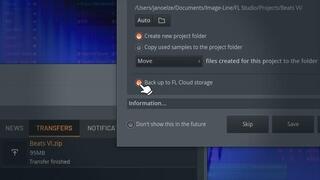
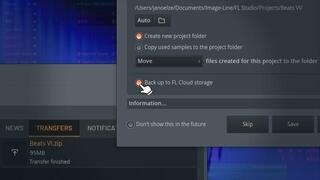
Having the same DAW is not enough when exchanging projects. The second computer also needs compatible versions of the plug-ins and libraries used, as well as active licenses. Before handing over a project, therefore save important tracks as audio files too, and note down the tempo and other data. This reduces dependence on a single plug-in that may not be available at another workstation.
A license is not always just an ordinary file
A program may use a serial number, manufacturer account, licensing application or physical key. Find out on how many devices you may activate the license, whether it can be deactivated and transferred between computers, and whether it requires regular internet verification. For a computer without an internet connection, the option of offline authorization is essential. Keep the account and proof of license separate from the working computer.
- A full license is intended for a new user without a previous version.
- An upgrade usually requires an eligible older version; verify the exact path before purchase.
- An update is usually a smaller upgrade, but manufacturers' terminology may differ.
- An educational license may require proof of eligibility and have specific conditions.
- A subscription provides use for the duration of the service, while a perpetual license is tied to a specific version and its conditions.
Computer performance and disk space
Virtual synthesizers and effects load the processor, while large sampled instruments use RAM and fast storage. Treat the manufacturer's requirements as a starting point, not a guarantee of the same performance in every project. One track may be undemanding, but dozens of simultaneous plug-ins will slow down the system. Freezing tracks, rendering instruments to audio or sensible use of shared effect buses can help.
For libraries, allow space for installation files, the content itself, projects and backups. Some products allow you to move data to another drive, but the application and authorization components may remain on the system storage. Before moving anything, follow the library manager's instructions; manually relocating a folder may break file links.
Choosing according to the work you do
Recording a band and vocals
Prioritize stable recording, simple track naming, fast editing and good management of multiple inputs. You need convenient creation of monitor paths and the ability to record a clean signal without unwanted processing. Add effects sparingly; when recording, a reliable project and backup are more important than a large plug-in bundle.
Electronic music and arrangement creation
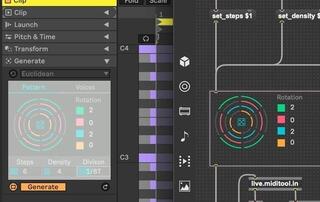
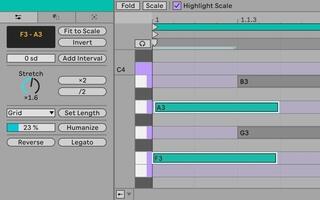
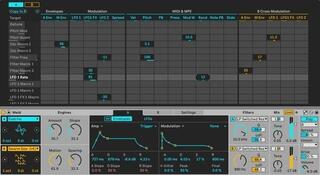
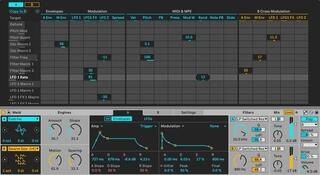
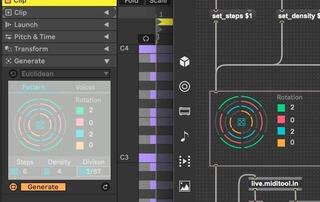
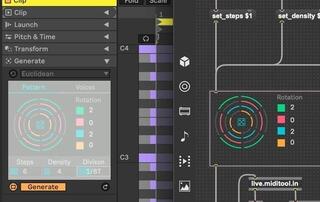
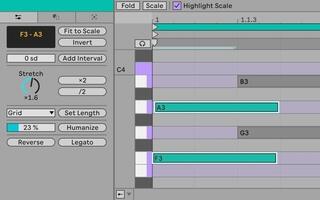
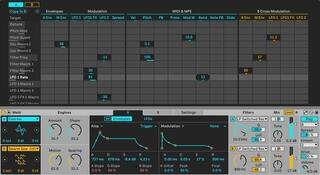
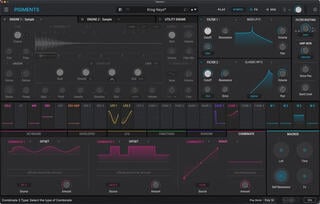
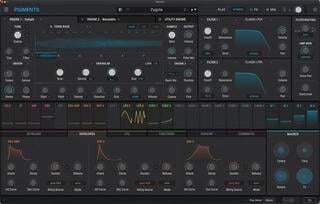
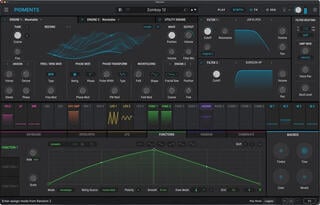
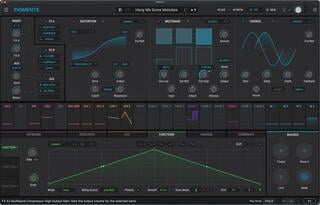
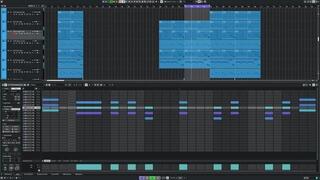
MIDI work, step programming, automation and fast sound browsing are usually important. Choose virtual instruments according to both their control method and the character of the library. Many similar synthesizers can slow down creation, so first learn the capabilities of the instruments bundled with the DAW and add only specific missing sounds.
Notation, school and education
For scores, check the range of markings, work with transposing instruments, voice distribution and print output quality. School deployment may require management of multiple computers or a special license type. Evaluate educational software according to the user's level, interface language and ability to track progress, not just the number of exercises.
Video, picture and audio post-production
If you create music for picture, check supported video formats, timecode and export method. For a standard clip, a video track in a DAW may be sufficient; a more demanding project may require standalone video software. Agreement on frame rate and timecode start is important so that the audio does not shift after transfer.
Workflow without unnecessary purchases
- Choose a DAW compatible with your computer and audio interface.
- Create a test project with audio, MIDI, automation and export.
- Find out which specific tasks the bundled tools do not cover.
- Only then add an effect, virtual instrument or library.
- Record licensing details and set up regular project backups.
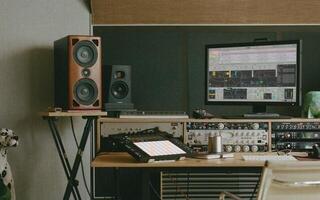
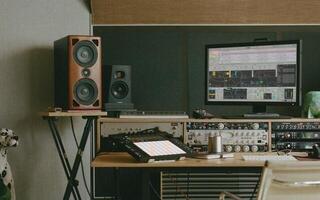
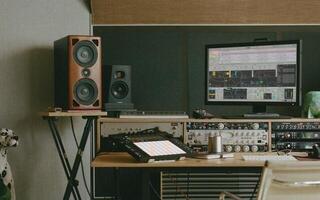
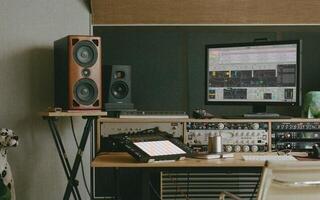
When mixing, listen on a reliable system; suitable studio monitors help you assess the changes you make in the program. Build your software setup in layers: first the recording environment, then the instruments your music truly lacks, and only later specialized processing or mastering. This leaves fewer unused plug-ins in the project and makes compatibility easier to manage.